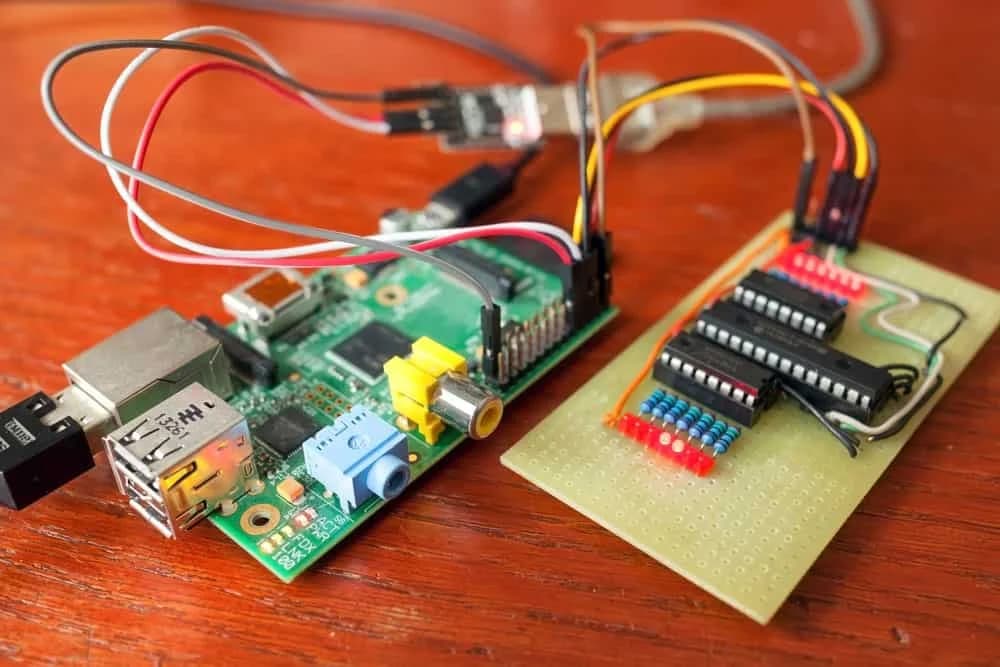
Complete guide to setting up WiFi on Raspberry Pi. Covers Raspberry Pi Imager, command line tools, headless configuration, multiple networks, static IP, and troubleshooting for both Bookworm and legacy OS versions.
For more information on industry standards, see printed circuit board and IPC standards.
"When a cable sees more than 10,000 flex cycles, I stop treating jacket material as a purchasing detail; bend radius, strand class, and insulation thickness become the actual reliability drivers."
Hommer Zhao, Founder & CEO, WIRINGO
Getting your Raspberry Pi connected to WiFi seems like it should be simple—and it is, once you know the right approach. But the setup method depends on your Pi model, operating system version, and whether you have a monitor connected. This guide covers every scenario.
Before You Begin
Check Your Raspberry Pi Model
WiFi capabilities vary by model:
- Raspberry Pi 5, 4, 3B+, 3B, Zero W, Zero 2 W: Built-in WiFi
- Raspberry Pi 2, 1, Zero (non-W): Requires USB WiFi adapter
- Raspberry Pi Pico W: Built-in WiFi (different setup process)
This guide focuses on Raspberry Pi single-board computers running Raspberry Pi OS (formerly Raspbian).
Know Your OS Version
Recent changes to Raspberry Pi OS significantly affect WiFi configuration:
- Bookworm (Raspberry Pi OS 12+): Uses NetworkManager, older wpa_supplicant methods may not work
- Bullseye and earlier: Uses wpa_supplicant, more configuration options
Check your version with:
cat /etc/os-release
Gather Network Information
Have ready:
- WiFi network name (SSID)
- WiFi password
- Security type (WPA2 is most common)
- Country code (US, GB, DE, etc.)
Method 1: Raspberry Pi Imager (Recommended for Headless Setup)
The easiest way to configure WiFi—especially for headless setups without monitor or keyboard—is during the initial OS installation using Raspberry Pi Imager.
Step-by-Step Process
- Download Raspberry Pi Imager from raspberrypi.com
- Insert your microSD card into your computer
- Open Raspberry Pi Imager and select your Pi model
- Choose your operating system (Raspberry Pi OS recommended)
- Click the gear icon or press Ctrl+Shift+X to open Advanced Options
- Configure settings:
- Enable SSH (choose password or public-key authentication)
- Set username and password
- Configure wireless LAN with your SSID and password
- Set wireless LAN country
- Set locale settings
- Write the image to your SD card
When your Pi boots, it will automatically connect to the configured network. Find its IP address from your router's admin page or use a network scanner.
Why This Method Works Best
The Imager writes configuration directly into the OS image, ensuring proper setup regardless of Raspberry Pi OS version. It handles the NetworkManager vs. wpa_supplicant differences automatically.
Method 2: Desktop GUI (With Monitor Connected)
If you have a monitor, keyboard, and mouse connected, the graphical interface provides the simplest experience.
For Raspberry Pi OS with Desktop
- Click the network icon in the top-right menu bar (looks like two computers or WiFi symbol)
- Select your network from the dropdown list
- Enter your password when prompted
- Wait for connection (icon changes to show signal strength)
The connection saves automatically and persists across reboots.
Troubleshooting GUI Connection
If no networks appear:
- Verify WiFi is enabled: Click network icon, ensure WiFi is toggled on
- Check country setting: Menu → Preferences → Raspberry Pi Configuration → Localisation → Set WiFi Country
- Verify hardware:
rfkill listshould show WiFi as unblocked
Method 3: raspi-config (Command Line with Display)
For Raspberry Pi OS Lite or when you prefer command-line tools:
sudo raspi-config
Navigate to:
- System Options (or Network Options on older versions)
- Wireless LAN
- Enter country code when prompted
- Enter SSID
- Enter password
The tool configures the connection and attempts to connect immediately. Exit raspi-config when done.
Method 4: nmcli Command Line (Bookworm and Later)
For Raspberry Pi OS Bookworm using NetworkManager:
List Available Networks
nmcli device wifi list
Connect to a Network
sudo nmcli device wifi connect "YourNetworkName" password "YourPassword"
Check Connection Status
nmcli connection show
Connect to a Hidden Network
sudo nmcli device wifi connect "HiddenSSID" password "YourPassword" hidden yes
Configure Static IP
sudo nmcli connection modify "YourNetworkName" ipv4.addresses 192.168.1.100/24
sudo nmcli connection modify "YourNetworkName" ipv4.gateway 192.168.1.1
sudo nmcli connection modify "YourNetworkName" ipv4.dns "8.8.8.8 8.8.4.4"
sudo nmcli connection modify "YourNetworkName" ipv4.method manual
sudo nmcli connection up "YourNetworkName"
Method 5: Manual wpa_supplicant.conf (Bullseye and Earlier)
For older Raspberry Pi OS versions or when Imager isn't available:
Creating Configuration Before First Boot
- Flash the OS to your SD card (using any method)
- Mount the boot partition on your computer
- Create a file named
wpa_supplicant.confin the boot partition:
country=US
ctrl_interface=DIR=/var/run/wpa_supplicant GROUP=netdev
update_config=1

network={
    ssid="YourNetworkName"
    psk="YourPassword"
    key_mgmt=WPA-PSK
}
- Create an empty file named
ssh(no extension) to enable SSH - Eject the SD card and boot your Pi
The configuration file moves automatically to /etc/wpa_supplicant/ on first boot.
Important: This Method Doesn't Work on Bookworm
Raspberry Pi OS Bookworm uses NetworkManager instead of wpa_supplicant for network management. The wpa_supplicant.conf file in the boot partition is ignored.
For Bookworm headless setup without Imager, you need to either:
- Use Raspberry Pi Imager (recommended)
- Manually configure NetworkManager connection files
Configuring Multiple WiFi Networks
For devices that move between locations, configure multiple networks upfront.
Using Raspberry Pi Imager
Unfortunately, Imager only configures one network. Add additional networks after first boot using nmcli or GUI.
Using wpa_supplicant.conf (Bullseye and Earlier)
"A crimp that passes pull-force once is not enough. For production harnesses, the process has to hold conductor brush length, insulation support, and crimp height within the work instruction every shift."
Hommer Zhao, Founder & CEO, WIRINGO
Add multiple network blocks with priority values:
country=US
ctrl_interface=DIR=/var/run/wpa_supplicant GROUP=netdev
update_config=1

network={
    ssid="HomeNetwork"
    psk="HomePassword"
    priority=10
    key_mgmt=WPA-PSK
}

network={
    ssid="OfficeNetwork"
    psk="OfficePassword"
    priority=5
    key_mgmt=WPA-PSK
}

network={
    ssid="MobileHotspot"
    psk="HotspotPassword"
    priority=1
    key_mgmt=WPA-PSK
}
Higher priority numbers get connected first when multiple networks are available.
Using nmcli (Bookworm)
sudo nmcli device wifi connect "Network1" password "Password1"
sudo nmcli device wifi connect "Network2" password "Password2"
Both connections save and the Pi auto-connects to available networks.
Setting a Static IP Address
Static IPs simplify accessing headless Raspberry Pis—you always know the address.
Using NetworkManager (Bookworm)
See the nmcli method above for static IP configuration.
Using dhcpcd.conf (Bullseye and Earlier)
Edit /etc/dhcpcd.conf:
sudo nano /etc/dhcpcd.conf
Add at the end:
interface wlan0
static ip_address=192.168.1.100/24
static routers=192.168.1.1
static domain_name_servers=192.168.1.1 8.8.8.8
Reboot for changes to take effect.
Troubleshooting WiFi Connection Issues
No Networks Visible
Check country setting: WiFi won't scan without a country code set. Different countries have different legal WiFi channels.
sudo raspi-config
# Navigate to Localisation Options → WLAN Country
Check if WiFi is blocked:
rfkill list
If blocked:
sudo rfkill unblock wifi
Connection Drops Frequently
Power management might be the culprit:
# Check power management status
iwconfig wlan0

# Disable power management
sudo iwconfig wlan0 power off
To make permanent, add to /etc/rc.local before exit 0:
/sbin/iwconfig wlan0 power off
Can't Connect to 5GHz Network
Some Raspberry Pi models don't support 5GHz:
- 5GHz supported: Pi 3B+, Pi 4, Pi 5, Pi Zero 2 W
- 2.4GHz only: Pi 3B, Pi Zero W
Also verify your router's 5GHz network is set to a channel your Pi supports (varies by country).
Wrong Password Errors
- Verify SSID and password are exactly correct (case-sensitive)
- Check for special characters that might need escaping
- Ensure you're entering the WiFi password, not the router admin password
Connected But No Internet
Check DNS resolution:
ping -c 4 8.8.8.8  # Test IP connectivity
ping -c 4 google.com  # Test DNS resolution
If IP works but DNS fails, set DNS servers manually.
Check routing:
ip route show
Ensure a default gateway is configured.
Finding Your Pi's IP Address
From Another Computer on the Same Network
# Linux/Mac
arp -a | grep raspberry

# Or use nmap
sudo nmap -sn 192.168.1.0/24
From Your Router
Most routers show connected devices in their admin interface. Look for a device named "raspberrypi" or similar.
If You Have Console Access
hostname -I
# Or
ip addr show wlan0
Enterprise WiFi (WPA2-Enterprise)
Connecting to enterprise networks (common in offices and universities) requires additional configuration.
PEAP-MSCHAPv2 Example
Edit /etc/wpa_supplicant/wpa_supplicant.conf:
network={
    ssid="EnterpriseNetwork"
    key_mgmt=WPA-EAP
    eap=PEAP
    identity="username"
    password="password"
    phase2="auth=MSCHAPV2"
}
For NetworkManager on Bookworm, use the GUI network settings or nmtui for enterprise configuration—it's significantly easier than manual file editing.
Summary
The recommended approach for most users:
- New installations: Use Raspberry Pi Imager with WiFi pre-configured
- Existing installations with monitor: Use the desktop GUI or raspi-config
- Headless existing installations: SSH in via Ethernet first, then configure WiFi with nmcli (Bookworm) or wpa_supplicant.conf (older versions)
Whatever method you choose, remember to set your country code—without it, WiFi won't work properly. And for headless setups, always have a backup plan (Ethernet cable or SD card access) in case WiFi configuration doesn't work the first time.
Happy connecting!
"On portable cord and harness work, the standard matters as much as the drawing. UL 62, IPC/WHMA-A-620, and the connector maker's crimp spec each control a different failure mode."
Hommer Zhao, Founder & CEO, WIRINGO
If you want to turn this topic into a production decision, review our cable assembly guide, check the supporting numbers on the FFC cable reference, and use the wire harness manufacturing service if you need a second review before release.



Need Help with Your PCB Design?
Check out our free calculators and tools for electronics engineers.
Browse PCB Tools"In over 20 years of manufacturing experience, we have learned that quality control at the component level determines 80% of field reliability. Every specification decision you make today affects warranty costs three years from now."
— Hommer Zhao, Founder & CEO, WIRINGO